
If you own a Makita DMR or MR series radio—including popular models like the DMR104, DMR105, DMR109, DMR110, DMR112, DMR115, and MR007G—keeping its software up to date is key to unlocking optimal performance, resolving glitches, and ensuring smooth functionality. Whether you’re troubleshooting minor issues or simply want to leverage the latest software enhancements, this step-by-step guide will walk you through the entire update process, from system checks to successful installation.
Makita’s BMR105 / DMR104, DMR105, DMR109, DMR110, DMR112, DMR115, and MR007G site radio has a new software update available. The update is used to improve the software and troubleshoot, for example, the transmitter run.
In this guide, you will find all the information you need to install the new software.
We take the software updates of BMR105 and DMR105 as examples.
System requirements
Windows 7 operating system with 32-bit
warning: 64-bit operating systems are not supported.
To find out if you meet the system requirements:
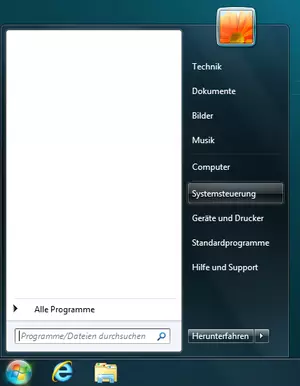
1. Open the Windows Control Panel.
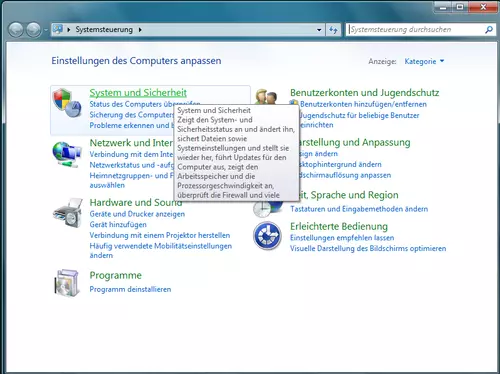
2. Click on “System and Security”.
3. Click on “System”.
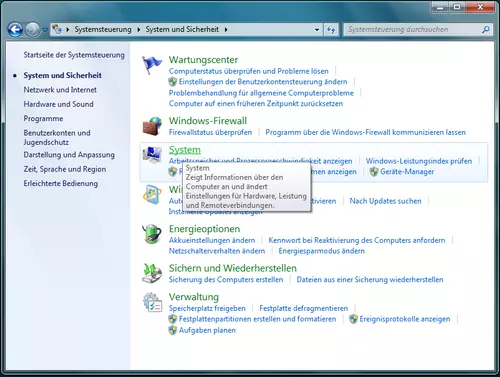
4. Under System Type, see if you are using a 32-bit or 64-bit. If you are using a 64-bit version, you will need another computer for the update.
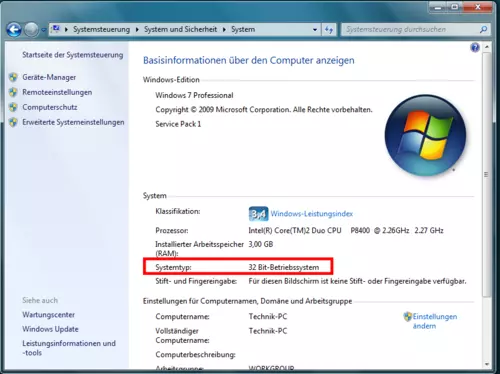
Instructions Software Update
Please check the model number, which is shown on the back of the device:
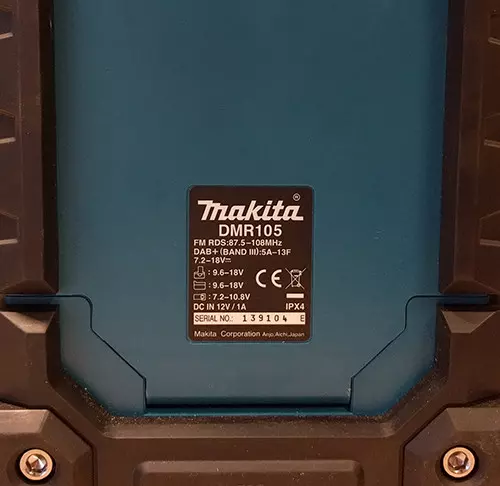
Once you have verified that you have a compatible operating system, follow this step-by-step guide:
1. Download here (Germany website), Global webiste here, Download the installation file and save it on your computer.
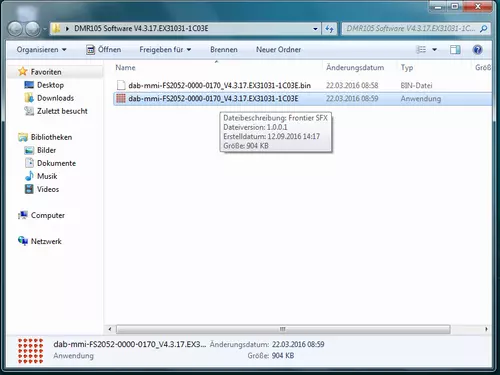
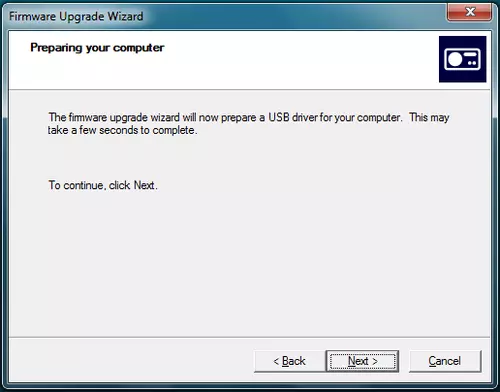
2. Open the installation file, press “Next” to go to the next step.
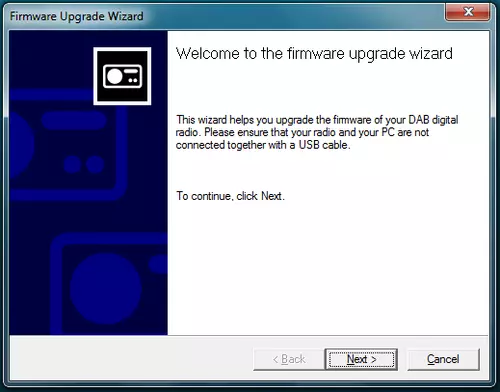
3. The installation will now install the required drivers. Please confirm the installation of these drivers and click on “Next” again.
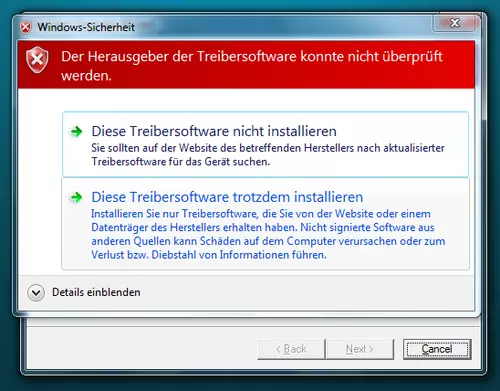
4. Windows then requires the driver installation permission. Click on “Install this driver software anyway”.
5. Your computer is now ready to install the update. You can now turn on the radio.
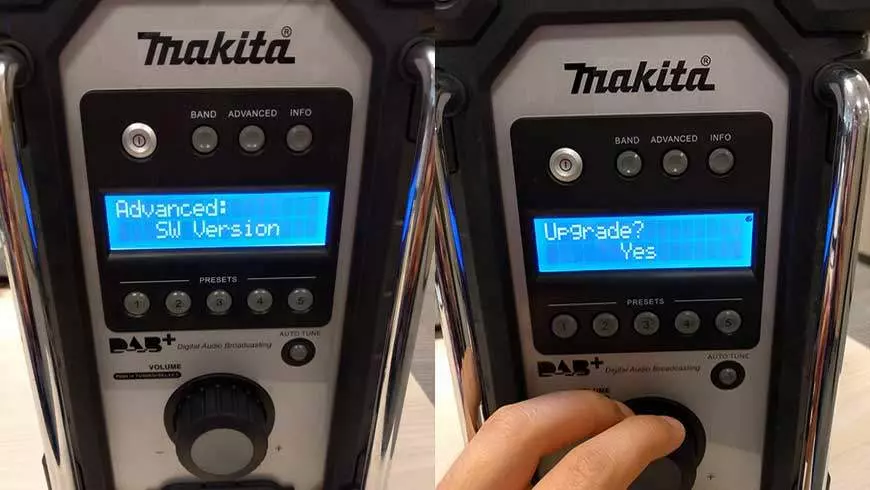
6. Then press “Advanced” and check the current software version by turning the volume control to the left and confirming the entry under “SW Version” with the press of a button.
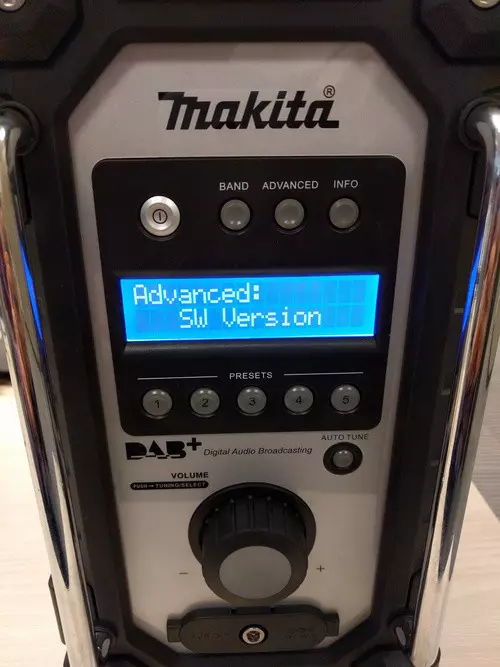
previous version: V4.3.17-1C02E
new version: Updated irregularly
7. If your device has version V4.3.17-1C02E installed, you can follow the steps and install the update. Press “Advanced” again and turn the volume control 2 times to the left and confirm the input at “Software Upgrade”.
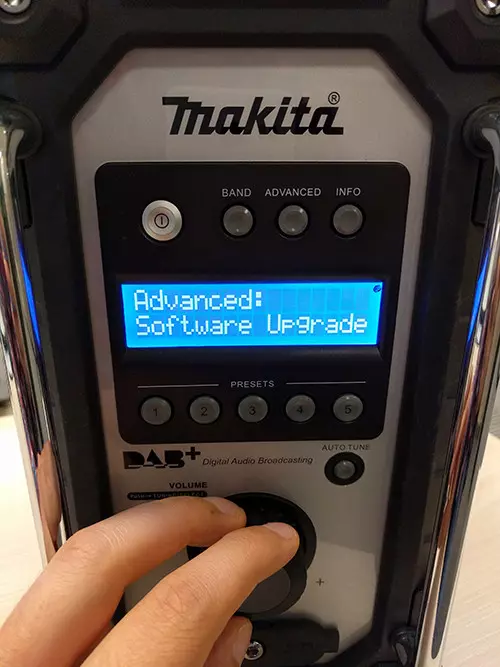
8. Confirm the installation with “Yes”.
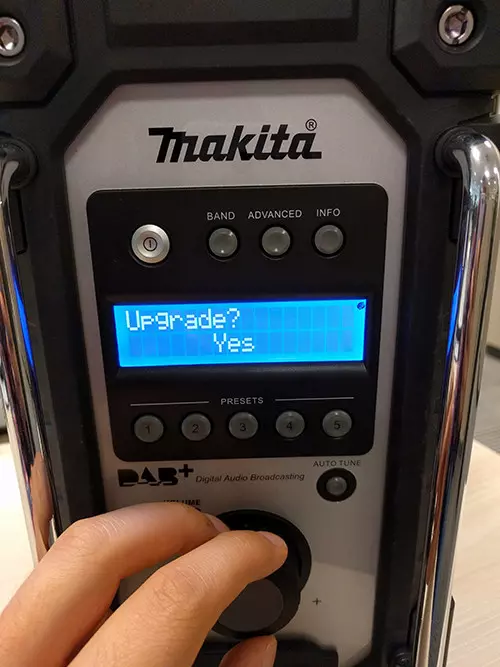
9. Now you can connect the radio to the computer via a USB cable.
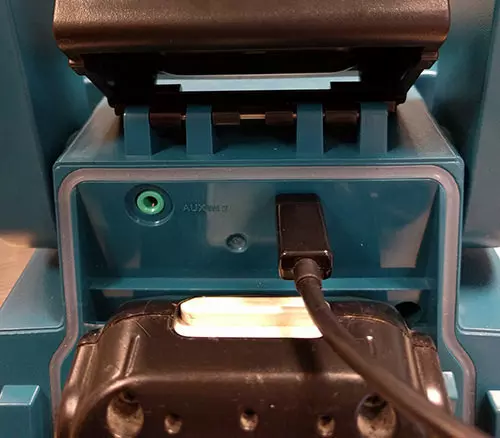
10. Your computer should now recognize the radio, click “Next” to install the update.
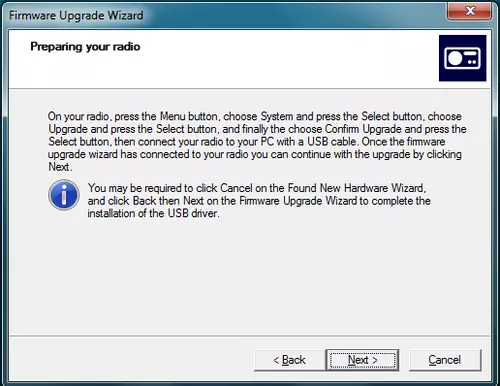
11. Caution: Do not turn off the computer during installation or remove the USB connection.
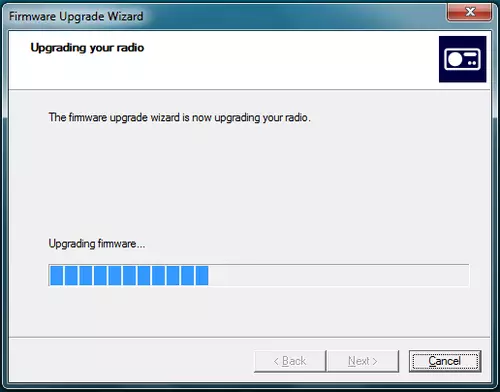
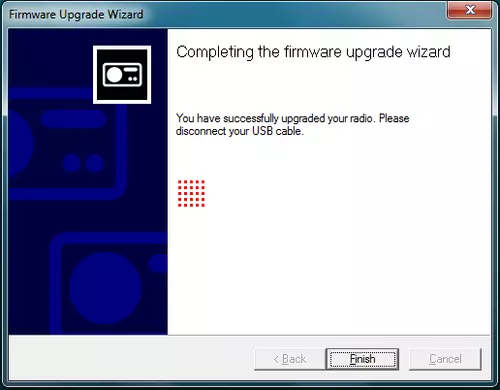
12. The update has now been successfully completed. Finally click on “Finish” and finish the application. You can now use the radio as usual.
Keeping your Makita radio’s software updated is a simple yet effective way to extend its lifespan and maintain reliable performance. Whether you’re a professional using the radio on job sites or a casual user enjoying music or news, this update ensures you get the most out of your Makita device. If you encounter any issues during the process, refer to the official Makita support resources or our detailed guide for additional assistance.



I love the makita dab radio software update page, but I can’t seem to click on the file download link.
Any chance the update file could be emailed to me please.
Thanks, and keep up the good work.
Mark
Hello, download link is here https://www.makita.de/fileadmin/service/update-dmr105/DMR105_Software__Update.zip
hi,
how do i update my radio if i have a 64 bit operating system?
p.s also how do i get digital radio on it?
You need 64 bit computer for the update, just above steps.
Really daft it’s only 32 bit windows. I run 5 pc’s and 2 laptops . All 64 bit. When will Makita realise they are 10 years behind.